 Smart Control
 Companion / Upgrader
-
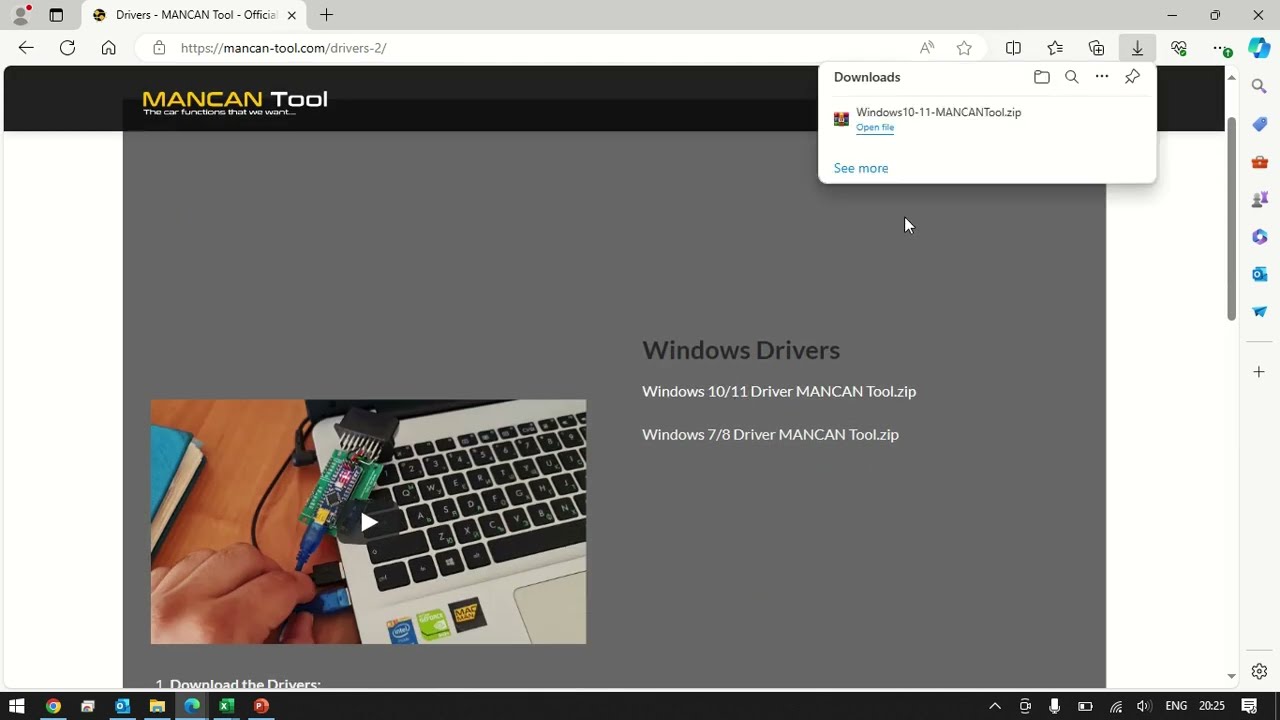
Download the Drivers:
- Choose the appropriate drivers for your operating system and download the ZIP file to a folder on your computer.
-
Extract the Zip File:
- Locate the downloaded ZIP file and extract its contents to a folder of your choice using your preferred extraction tool.
-
Identify the INF File:
- After extraction, open the folder containing the extracted files.
- Look for a file named “CH341SER.INF.” This is the file needed for installing the drivers.
-
Install the Drivers:
- Right-click on the “CH341SER.INF” file.
- From the context menu, select “Install”.
- If prompted by User Account Control (UAC), click “Yes” to allow the installation to proceed.
-
Follow the Installation Wizard:
- The installation process will proceed silently in the background.
- No on-screen prompts will appear during the installation.
- Once the installation is complete, you should see a confirmation message.
-
Verify Installation:
- After installation, verify that the drivers have been successfully installed.
- You can do this by checking Device Manager:
- Press Win + X and select “Device Manager” from the menu.
- Look for the device related to the drivers you installed. It should appear without any warning symbols.
-
Test with MANCAN Tool Companion:
- Start the MANCAN Tool Companion software to verify that everything works fine.
- Ensure that the device is recognized and functions correctly with the newly installed drivers.
